

Fleetbase is an open-source logistics platform worth looking at if you want more control over dispatch, tracking, orders, and operational workflows. The install is not that hard. The real question is whether you can run it securely, reliably, and in a way that actually fits the business.
A lot of logistics teams are not struggling because they need one more app.
They are struggling because the operation is being held together by too many disconnected pieces.
Orders are in one system. Dispatch notes are in another. Drivers are getting updates by text. Customer service is asking dispatch for status. Exceptions are buried in email. Somebody is copying information from a spreadsheet into another spreadsheet because that is just “how we do it.”
That works for a while.
Then volume goes up, the team gets busy, and those little gaps become missed updates, late responses, bad handoffs, and messy operations.
That is why I like looking at tools like Fleetbase.
Fleetbase is an open-source logistics and supply chain platform. It is built around things like orders, dispatch, fleet visibility, tracking, APIs, webhooks, and custom logistics workflows. It is not just a route planner. It is closer to a logistics operating system that a company can self-host, customize, and connect to the rest of its stack.
This post walks through the easy install path and, more importantly, what I would think about before using a tool like this in a real warehouse, 3PL, delivery, courier, field service, or distribution environment.
This is an independent technical walkthrough from Bractos. We are not affiliated with Fleetbase.
What Fleetbase does
Fleetbase gives logistics teams a foundation for workflows like:
- Order management
- Dispatch
- Driver or fleet visibility
- Delivery tracking
- Service areas and zones
- Customer-facing tracking
- Internal logistics workflows
- API-based integrations
- Webhooks and real-time updates
- Custom extensions
The Fleetbase repo describes features like a dynamic order board, custom order configuration, live fleet map, service zones, REST API support, sockets, webhooks, IAM, dashboards, and modular extensions.
That is the part that makes it interesting.
A lot of companies do not need some massive enterprise platform on day one. They need something they can test, adapt, and build around. Especially if their workflow does not fit neatly into a generic SaaS product.
The big advantage of something like Fleetbase is control.
The tradeoff is that control comes with ownership.
Installing the software is the easy part. Running it properly is where things get serious.
Who should look at Fleetbase?
Fleetbase is worth looking at if you operate or support:
- A local delivery company
- A courier operation
- A 3PL
- A warehouse with delivery or dispatch workflows
- A field service business
- A distribution company
- A business with recurring logistics workflows
- A company testing custom order, dispatch, or tracking software
It is probably not the right fit if all you need is a basic route planner or a simple spreadsheet replacement.
It starts to make more sense when you want:
- More control over your logistics workflow
- API access
- A self-hosted option
- Custom integrations
- Better visibility across orders, drivers, and exceptions
- A platform that can connect to other systems
- A way to prototype a logistics tool without starting from zero
For example, if you are a 3PL handling port-to-warehouse drayage around Houston, a static spreadsheet can only take you so far. The moment you need real-time exceptions, customer updates, driver visibility, and clean handoffs between dispatch and the warehouse, the workflow starts to matter a lot more.
Same thing for a local delivery or distribution team in Katy, Brookshire, Pasadena, Baytown, or near the Port of Houston. If the team is constantly asking, “Where is this order?” or “Who updated the customer?” the problem is not just software. It is the operating process around the software.
In other words, it is useful when the workflow matters.
And in logistics, the workflow always matters.
The easy install method
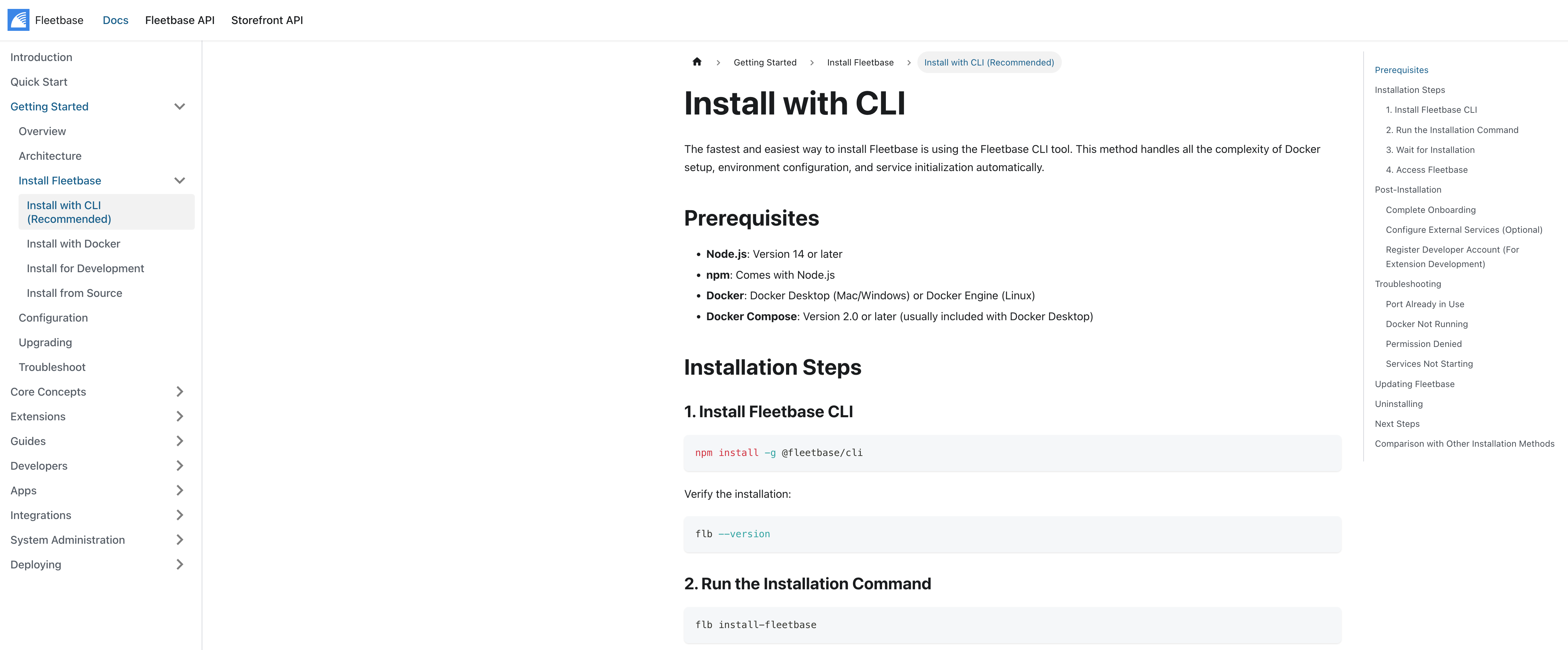
Fleetbase currently recommends the Fleetbase CLI as the fastest and easiest installation path. The CLI does a lot of the setup work for you: Docker configuration, environment files, image pulls, services, and database initialization.
The official prerequisites are:
- Node.js 14 or later
- npm
- Docker
- Docker Compose 2.0 or later
Docker Compose is usually included with Docker Desktop on Mac and Windows. On Linux, you may need to install Docker Engine and Docker Compose separately.
If you are just testing Fleetbase, I would start locally or on a clean development server first. Do not start by exposing this to the internet and calling it production.
That is how people create their own problems.
Step 1: Install Docker
Before doing anything else, confirm Docker is installed and running.
On Mac or Windows, the simplest path is usually Docker Desktop.
On Ubuntu or Debian Linux, you can install Docker with:
curl -fsSL https://get.docker.com -o get-docker.sh
sudo sh get-docker.sh
sudo usermod -aG docker $USER
After that, log out and back in so the Docker group change applies.
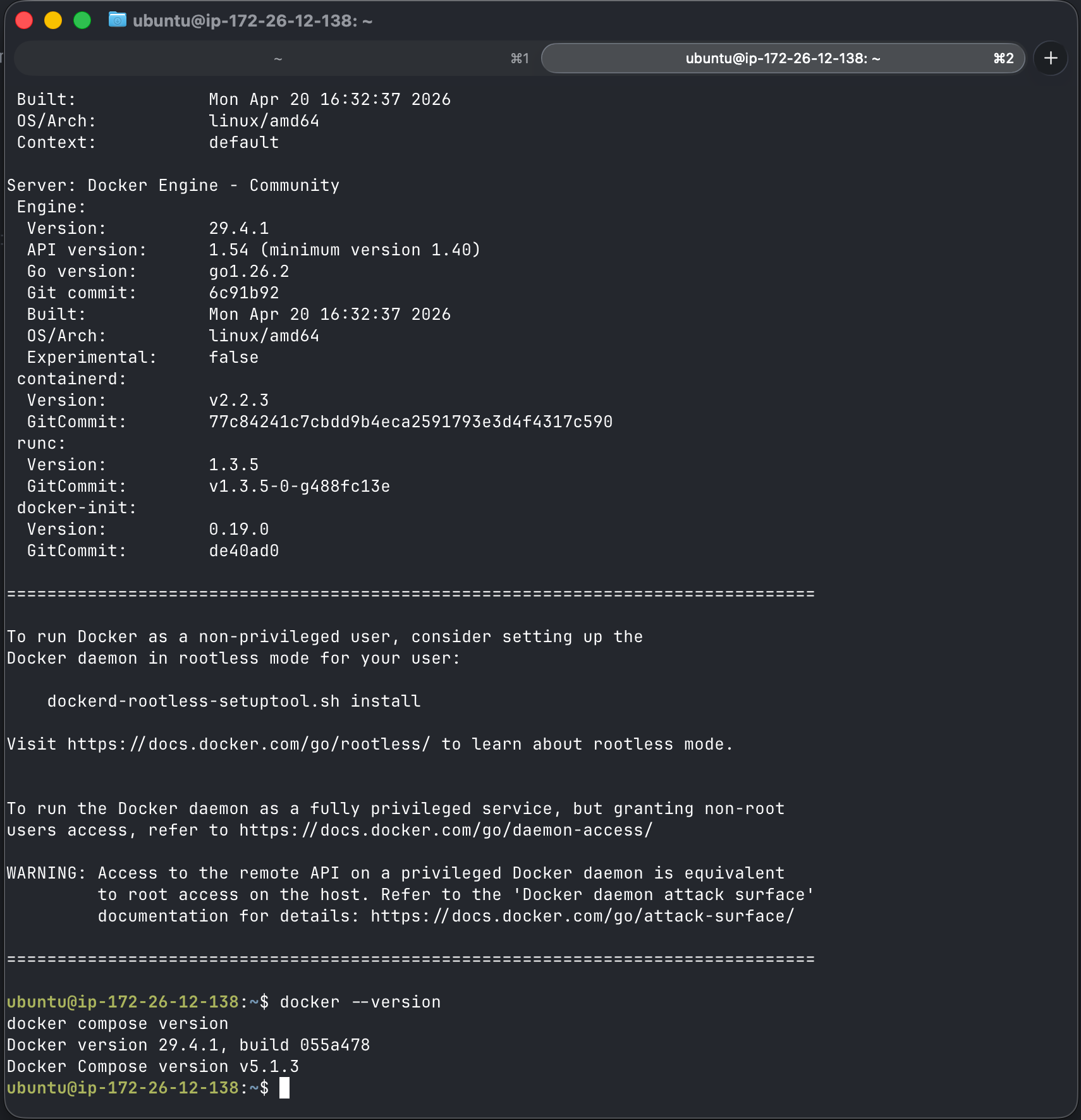
Then verify Docker and Docker Compose:
docker --version
docker compose version
If Docker is not running, Fleetbase will not install correctly.
Simple check, but it saves a lot of wasted time.
Step 2: Install Node.js and npm
Fleetbase CLI requires Node.js and npm.
Check what you have installed:
node -v
npm -v
Fleetbase lists Node.js 14 or later as the requirement.
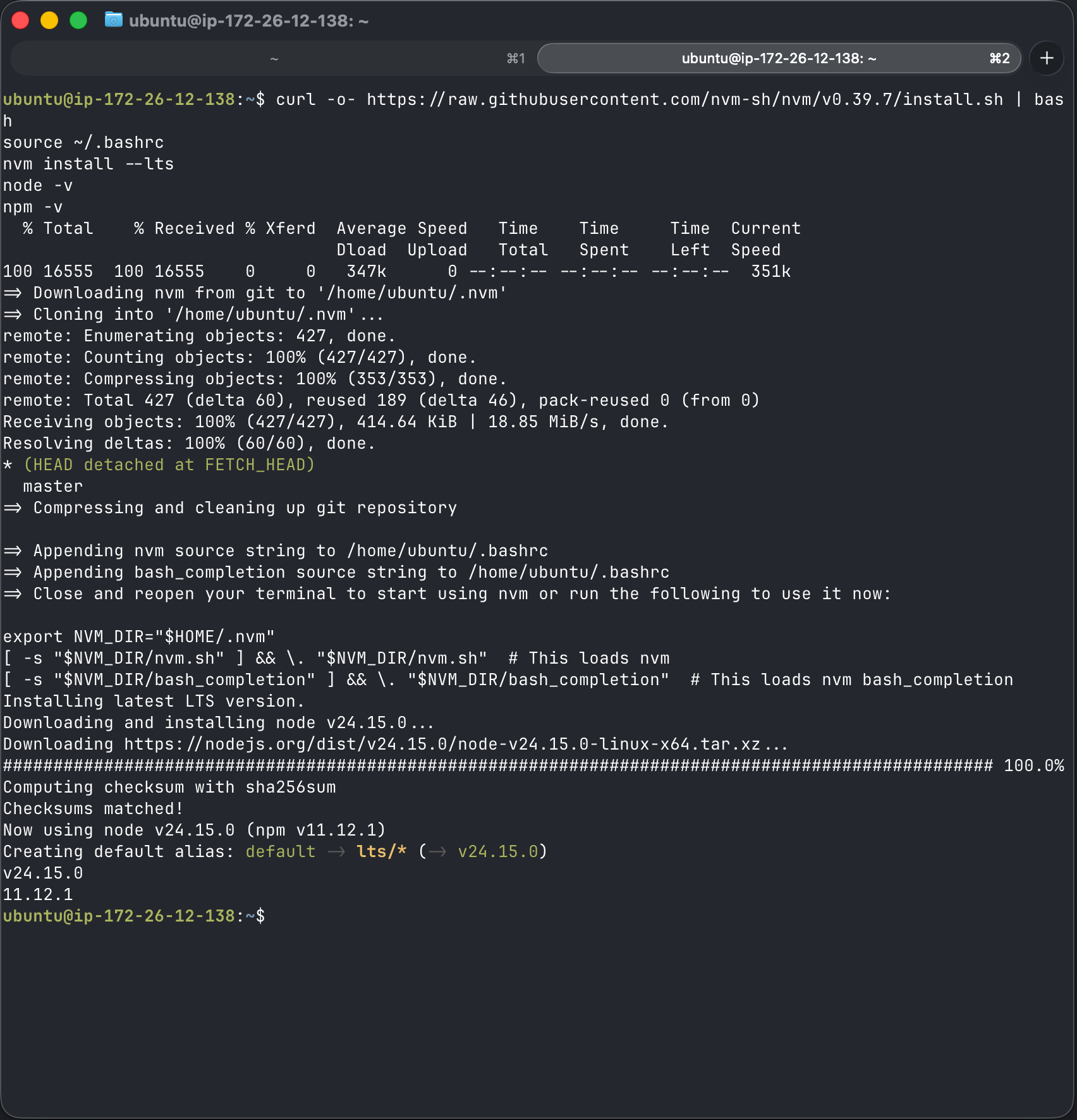
For a clean test environment, I usually prefer using nvm so you are not fighting system-level Node versions.
Example:
curl -o- https://raw.githubusercontent.com/nvm-sh/nvm/v0.39.7/install.sh | bash
source ~/.bashrc
nvm install --lts
node -v
npm -v
If you already have a good Node version installed, you can skip this.
Step 3: Install the Fleetbase CLI
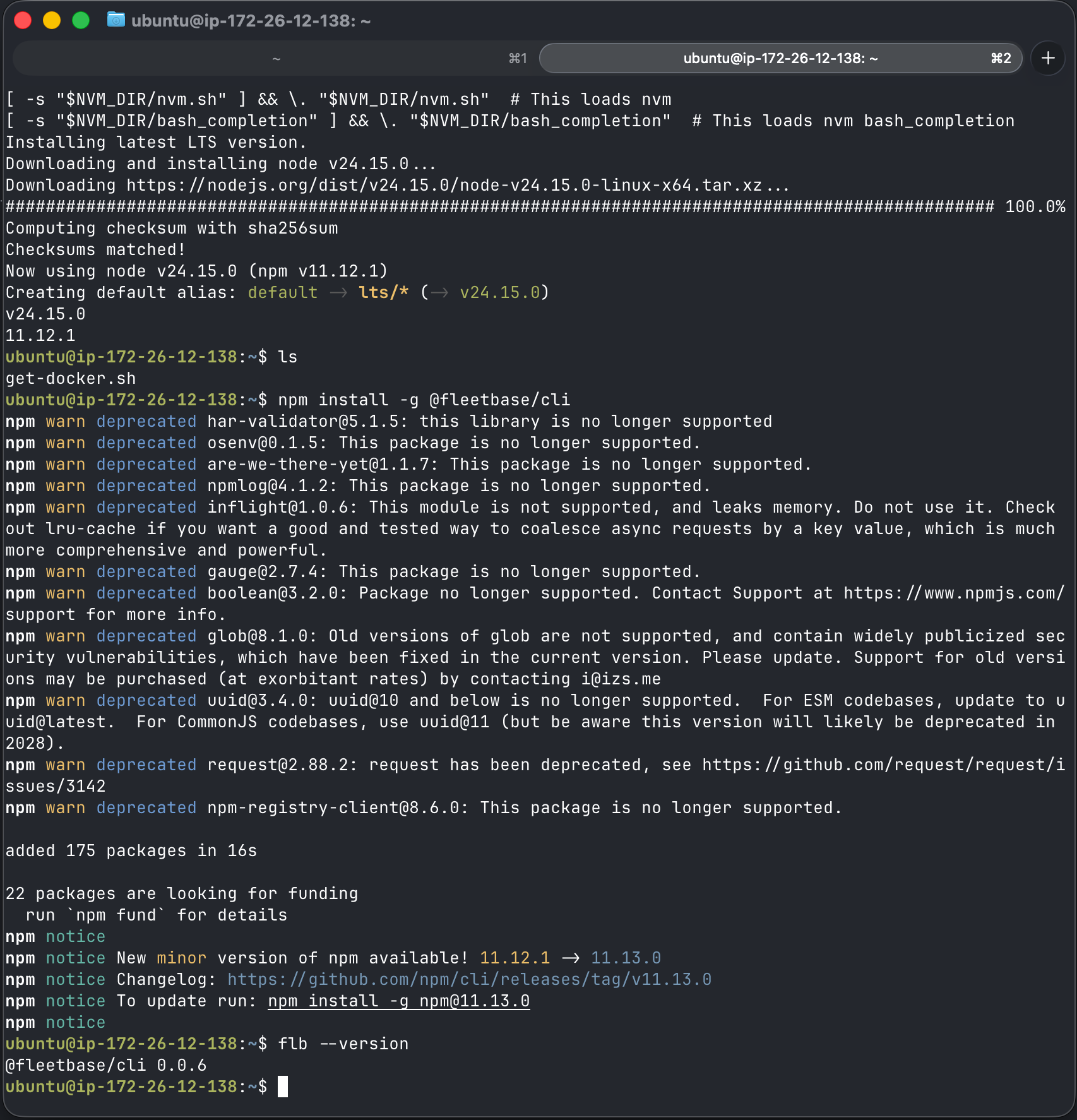
Install the Fleetbase CLI globally:
npm install -g @fleetbase/cliThen confirm it installed:
flb --versionIf that command returns a version, you are ready to run the installer.
Step 4: Run the Fleetbase installer
Run:
flb install-fleetbaseThe installer is interactive. It will ask for things like the host, environment, and install directory.
For a local test, keep it simple:
Host: localhost
Environment: development
Directory: default or your preferred folder
For a server deployment, slow down and be more careful. You will want DNS, SSL, firewall rules, backups, monitoring, and access controls before you treat it like production.
The CLI installer will create the install directory, generate Docker Compose configuration, create environment files, pull the required Docker images, start the services, and initialize the database.
The services include things like MySQL, Redis, API, Console, and SocketCluster.
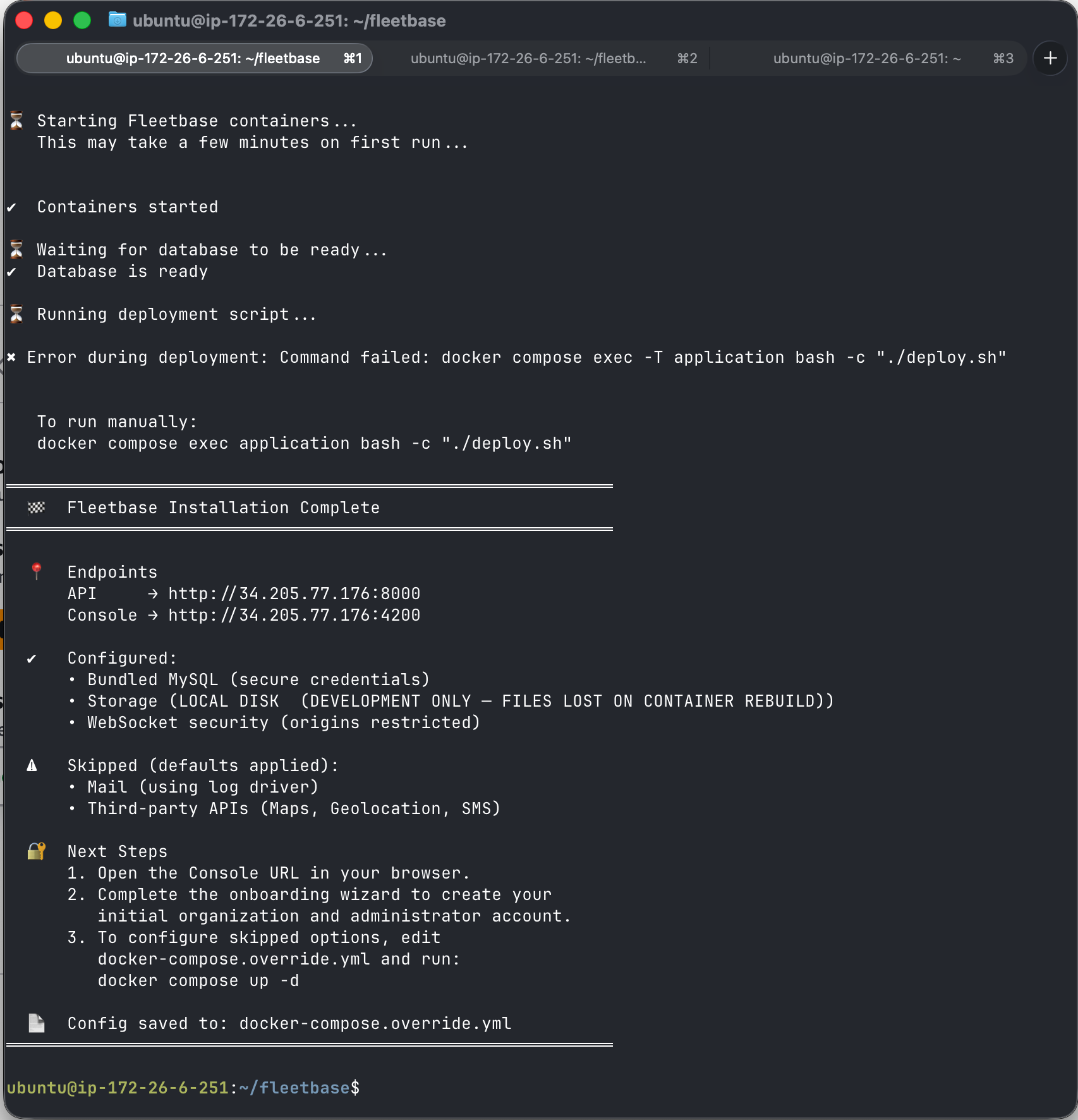
Step 5: Open Fleetbase in your browser
When the install completes, Fleetbase should show you the local URLs.
The default URLs are typically:
Fleetbase API:     http://localhost:8000
Fleetbase Console: http://localhost:4200
Open the Console:
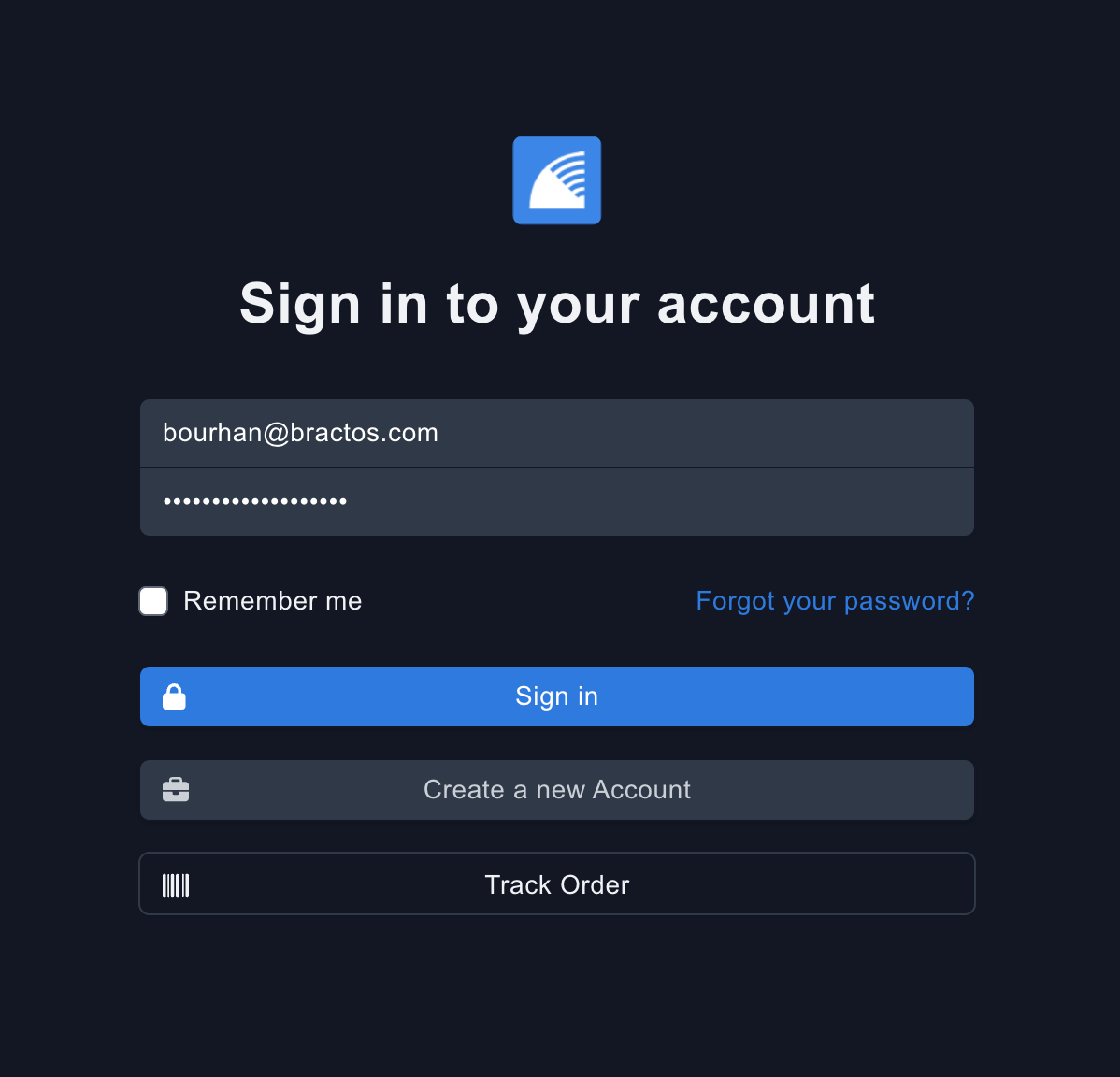
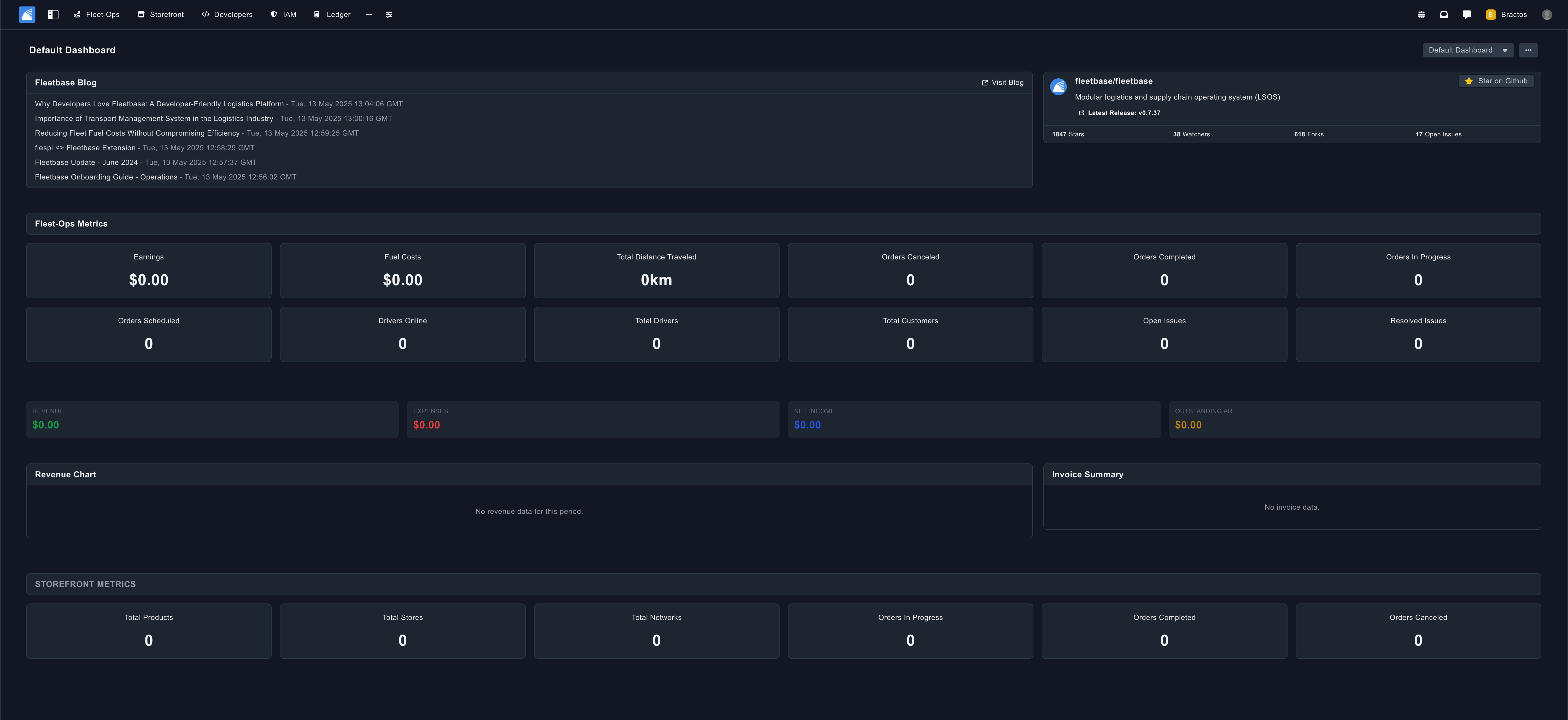
http://localhost:4200From there, complete onboarding, create the admin account, and set up the organization.
At this point, you have Fleetbase running.
That is the fun part.
Now comes the part people usually underestimate.
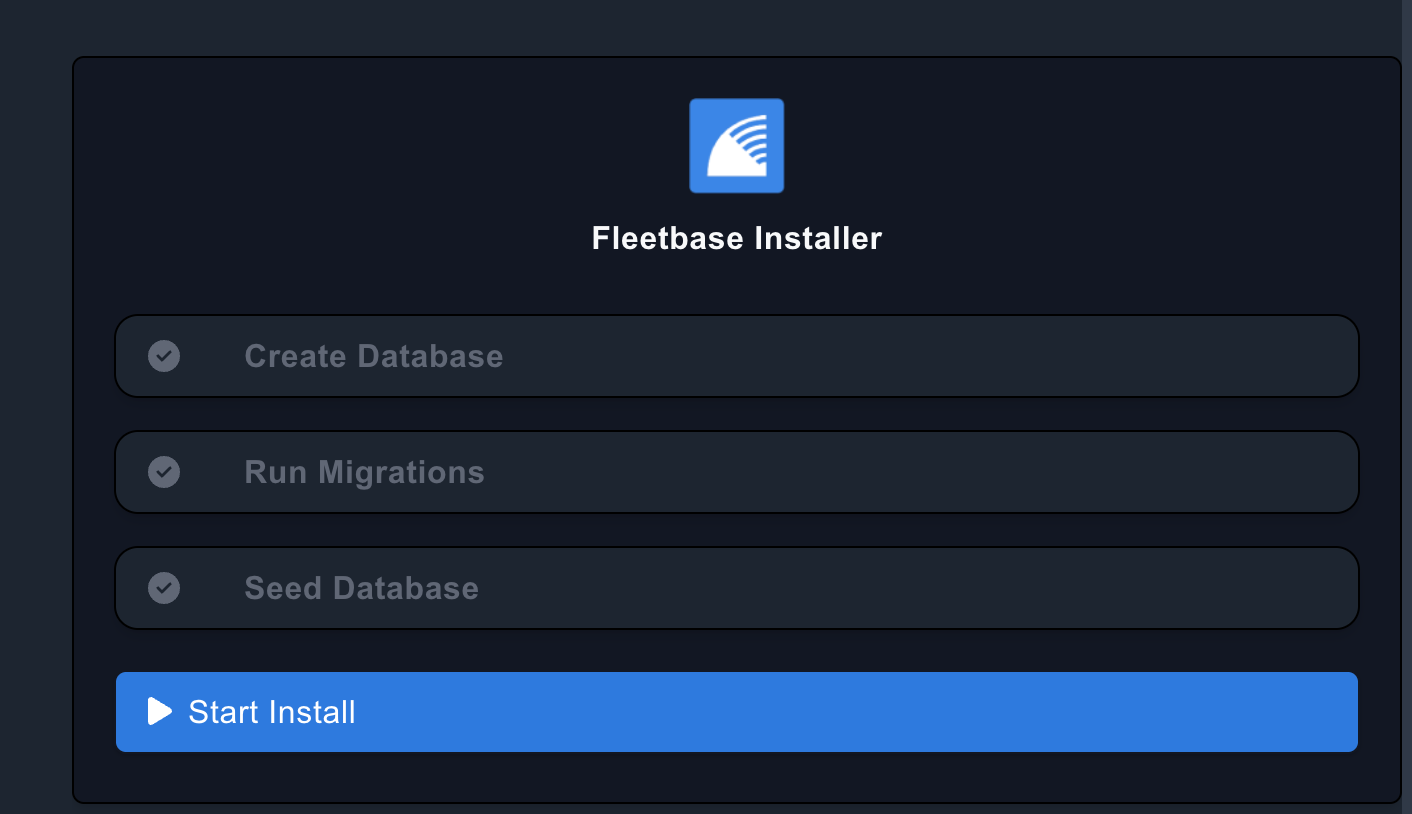
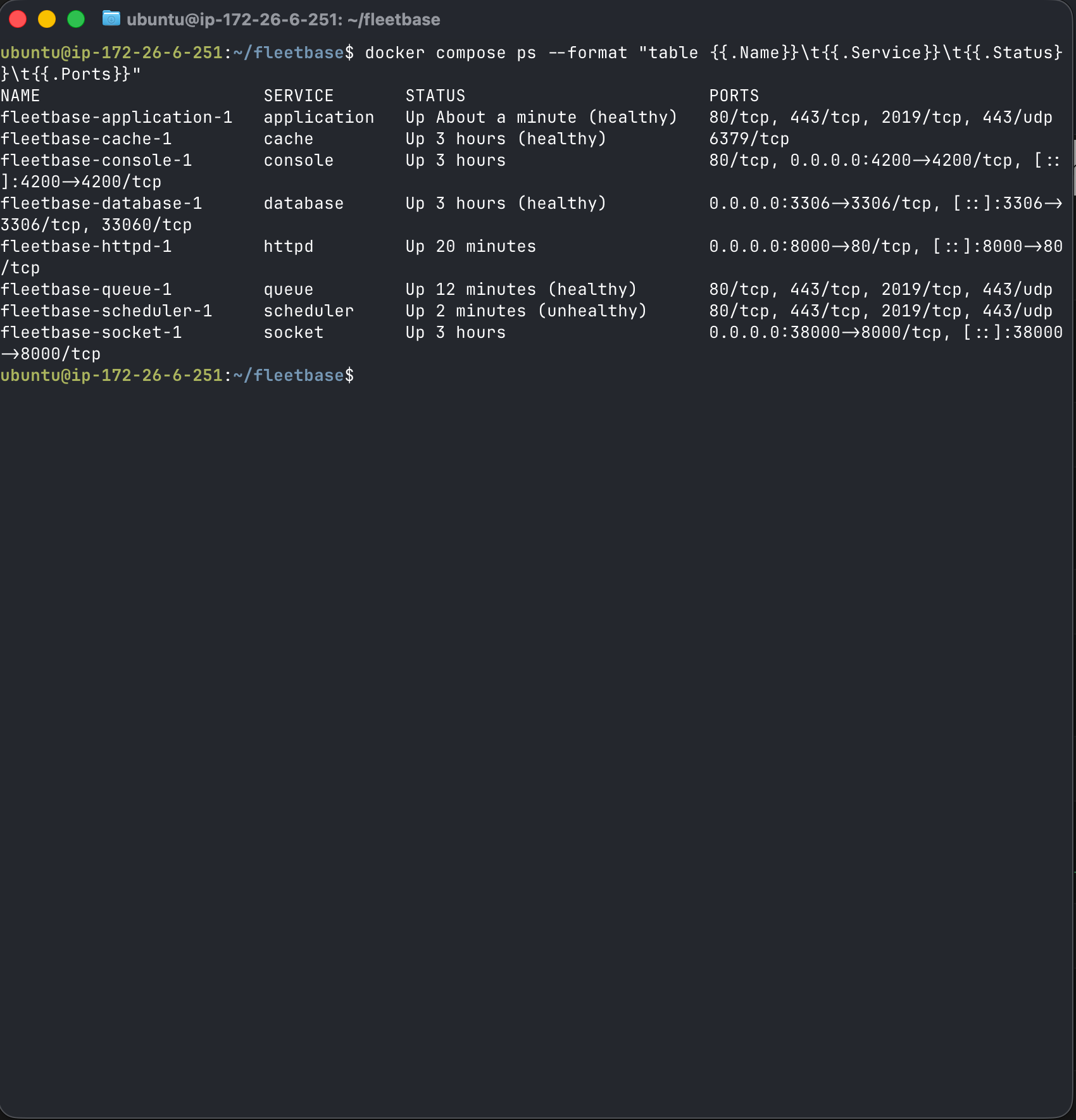
Step 6: Check that the containers are running
From the Fleetbase install directory, run:
docker compose psYou should see the Fleetbase services running.
To watch logs:
docker compose logs -fTo check a specific service:
docker compose logs -f applicationIf something fails, start with the logs.
Common issues include:
- Docker is not running
- Ports 4200 or 8000 are already in use
- Docker permission issues
- Environment variables are missing or incorrect
- A service started before another dependency was ready
Do not guess for an hour. Check the logs first.
Step 7: Grab a coffee and celebrate
That’s it. If you made it this far, Fleetbase is installed and running.
Grab a coffee and take the win, because even with the “easy” installer, getting a self-hosted logistics platform running is not nothing.
Field notes from my Lightsail install
I also tested Fleetbase on an AWS Lightsail Ubuntu server, not just on a local machine. That is where the install became more realistic.
The CLI installer is helpful, but on a server you can still run into normal Linux, Docker, database, and migration issues. None of this is shocking, but it is exactly why I would not treat a self-hosted logistics platform like a one-command weekend project if the business is going to depend on it.
Here are the main issues I ran into.
Docker permission issue
The first issue was Docker permissions. When trying to start the containers, the server returned:
permission denied while trying to connect to the Docker API at unix:///var/run/docker.sockThis usually means the current user is not allowed to talk to Docker. You can either run Docker commands with sudo, or add the user to the Docker group:
sudo usermod -aG docker $USERThen log out and back in so the group change applies.
This is simple, but it matters. If Docker permissions are not right, Fleetbase cannot pull images, start containers, or manage the stack properly.
Database setup and credentials
The database container had its own generated credentials. I checked them from inside the database container with:
docker compose exec database printenv | grep -E 'MYSQL|DB|DATABASE'That confirmed values like the database name, MySQL user, root password, and application database password.
This is important because if the app environment and database credentials do not line up, the app may start but fail later during setup, migrations, or onboarding.
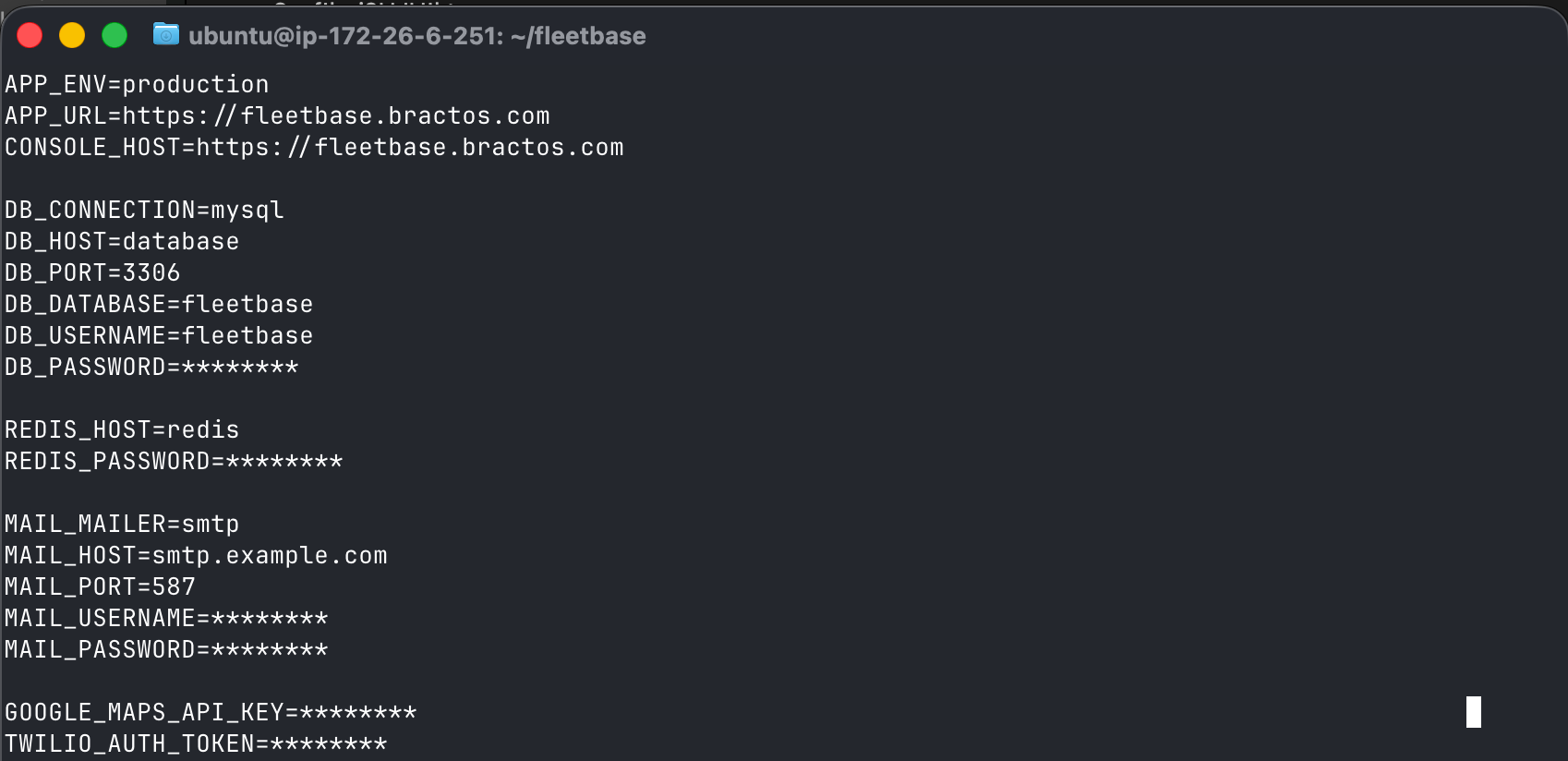
On a production install, I would also make sure these credentials are stored properly, not pasted into notes, screenshots, or source control. If you are documenting the install, sanitize anything that looks like a password, token, or secret.
Database creation worked, migrations did not finish cleanly
In my case, the database creation step eventually worked, but the installer failed around the migration step.
That is an important distinction.
A database can exist and the containers can be running, but the application may still not be ready if migrations did not complete. Migrations are what prepare the application tables and schema so Fleetbase can actually run correctly.
The fix was to run the migration step manually from the application container. Once the manual migration completed without errors, I was able to run the installer again and finish the final setup successfully.
The lesson: do not assume “containers are up” means “the application is ready.”
Always check:
docker compose ps
docker compose logs -f
And if the app is failing during setup, look specifically for database connection errors, missing tables, failed migrations, or permission issues.
What this proved
The Fleetbase install is doable. I did get it running on Lightsail.
But the real experience was not just:
flb install-fleetbaseIt was:
- Prepare the server
- Fix terminal quirks
- Fix Docker permissions
- Confirm containers are actually starting
- Inspect generated database credentials
- Resolve database setup issues
- Manually complete migrations when the automated path failed
- Re-run the installer and verify the application works
That is not a criticism of Fleetbase. This is normal self-hosted software reality.
The docs get you moving. The server still needs someone who knows how to troubleshoot Linux, Docker, databases, logs, credentials, and application initialization.
For a test environment, that is fine. For a logistics operation, this is where support, monitoring, backups, and documentation become non-negotiable.
Step 8: Configure the basics before real use
A local install is fine for testing.
Production is different.
Before a logistics team depends on this, you need to think about the systems around it.
Depending on your use case, you may need:
- SMTP or transactional email
- SMS notifications
- Google Maps API
- OSRM or another routing service
- Domain name
- SSL certificate
- Reverse proxy
- Backups
- Monitoring
- User access controls
- Update process
- Restore testing
Fleetbase also has environment variables for services like mail, OSRM, IPInfo, Google Maps, and Twilio. The README also notes that WebSocket origins should be restricted to specific production domains.
That matters.
You do not want a production system with wide-open origins, loose access, no backups, and no clear owner.
That is not “self-hosted.”
That is “self-inflicted.”
My production readiness checklist
Here is the checklist I would use before putting Fleetbase, or any similar logistics platform, in front of real users.
Infrastructure
- Use a dedicated server, VPS, or cloud instance
- Keep development and production separate
- Use DNS, not raw IP addresses
- Put the app behind a reverse proxy
- Use HTTPS with a valid SSL certificate
- Restrict exposed ports
- Keep SSH locked down
- Think about hosting location and latency, especially if dispatchers and mobile users need fast real-time updates
- Document where the system lives and who owns it
Security
- Use strong admin credentials
- Remove or change any defaults
- Use least-privilege access
- Restrict WebSocket origins
- Do not expose internal databases publicly
- Rotate API keys and secrets
- Keep secrets out of source control
- Keep Docker images and host packages updated
Data protection
- Back up the database
- Back up persistent volumes
- Test restores, not just backups
- Define retention windows
- Document recovery steps
- Know how much downtime the business can tolerate
- Know how much data loss the business can tolerate
If this system goes down at 9:00 AM on a busy day, what happens next?
If nobody knows, you are not ready for production.
Monitoring and support
- Monitor containers
- Monitor host CPU, RAM, disk, and network
- Watch failed jobs and application errors
- Set up alerting
- Document update steps
- Document rollback steps
- Keep a simple runbook
You do not need to over-engineer this from day one.
But you do need the basics.
Business workflow
This is the part that matters most.
Before rolling out any logistics platform, define:
- Who owns orders?
- Who can dispatch?
- Who can modify customers, drivers, and routes?
- How are exceptions handled?
- What is the system of record?
- What still lives in the WMS, TMS, ERP, CRM, or accounting system?
- What happens when something fails?
- Who gets notified?
- What still happens manually?
This is where a lot of software projects go sideways.
The install works. The demo looks good. Everybody likes the dashboard.
But nobody defines the real operating process.
Then the business ends up with one more tool sitting next to the same old spreadsheet.
That is not modernization.
That is clutter.
What I like about Fleetbase
I like Fleetbase because it sits in a real problem area.
A lot of logistics teams need more than a dispatch screen. They need a system that can connect orders, drivers, customers, exceptions, and status updates in a way that fits how the business actually runs.
Fleetbase is interesting because it has APIs, webhooks, sockets, extensions, dashboards, IAM, and custom workflow capabilities.
That gives a company room to build around its process instead of forcing every workflow into a generic tool.
The self-hosted angle is also attractive for companies that care about control, data ownership, and customization.
But open-source does not mean “free and easy forever.”
Someone still has to maintain it.
Someone has to secure it.
Someone has to back it up.
Someone has to update it.
Someone has to connect it to the rest of the business.
That is the difference between installing software and actually operating it.
Where Fleetbase could fit in a real stack
For a logistics or operations-heavy business, Fleetbase could be one part of a broader stack.
For example:
- Fleetbase for dispatch, delivery, and tracking workflows
- Microsoft 365 for identity, email, Teams, SharePoint, and documents
- A WMS or ERP for inventory, purchasing, and finance
- A CRM for customer and sales workflows
- A ticketing system for internal support
- Power BI or dashboards for reporting
- AI tools for exception summaries, follow-ups, SOP support, and internal knowledge search
The value is not just having another system.
The value is reducing the manual handoffs between systems.
Can dispatch see what they need without chasing people?
Can customer service answer a status question without interrupting the floor?
Can managers see exceptions before customers complain?
Can drivers get the right information without five phone calls?
Can leadership trust the data?
Can the business keep moving when something breaks?
That is the real test.
Final thoughts
Fleetbase is worth evaluating if you are a logistics, delivery, courier, warehouse, field service, or distribution business that wants more control over dispatch and workflow systems.
The easy install path is straightforward:
npm install -g @fleetbase/cli
flb install-fleetbase
After installation, you can typically access:
Fleetbase Console: http://localhost:4200
Fleetbase API:     http://localhost:8000
That gets you started.
But the real work is deciding whether the system fits your operation, how it should be secured, what it needs to connect to, who owns it, and what happens when it goes down.
That is where Bractos helps.
We work with Houston-area logistics, warehouse, manufacturing, distribution, and operations-heavy businesses on IT, cybersecurity, operational reliability, and practical AI automation.
For tools like Fleetbase, that can mean helping evaluate the fit, deploy it properly, secure the environment, configure backups, connect it to Microsoft 365 or other business systems, and make sure it supports the way the operation actually runs.
Not just “install it and good luck.”
If your team is exploring Fleetbase, open-source logistics tools, AI automation, or a more reliable IT foundation for your operation, Bractos can help you think through the setup before you spend time and money going down the wrong path.
Built for uptime. Managed for scale.
Sources
- Fleetbase GitHub repository: https://github.com/fleetbase/fleetbase
- Fleetbase CLI installation docs: https://docs.fleetbase.io/getting-started/install/with-cli/